• iPhone7 released

    Apple’s new iPhone 7 and iPhone 7 Plus to come with A10 Fusion 64 bit quad-core processor, new Black and Jet Black colours, AirPods instead 3.5 mm headphone jacks

  • Raspberry Pi Sells 10 Million Computers

    Raspberry Pi Foundation has announced that they have sold 10,000,000 Raspberry Pi single board computers since the first model was launched in 2012. An official Raspberry Pi Starter Kit has also been announced, which can be purchased online via authorized partners

  • Future Samsung Galaxy Phone

    Samsung patent shows smartphone running Android and Windows at the same time

Showing posts with label Mobiles info. Show all posts

YouTube Go: Watch YouTube Videos Without Using Internet


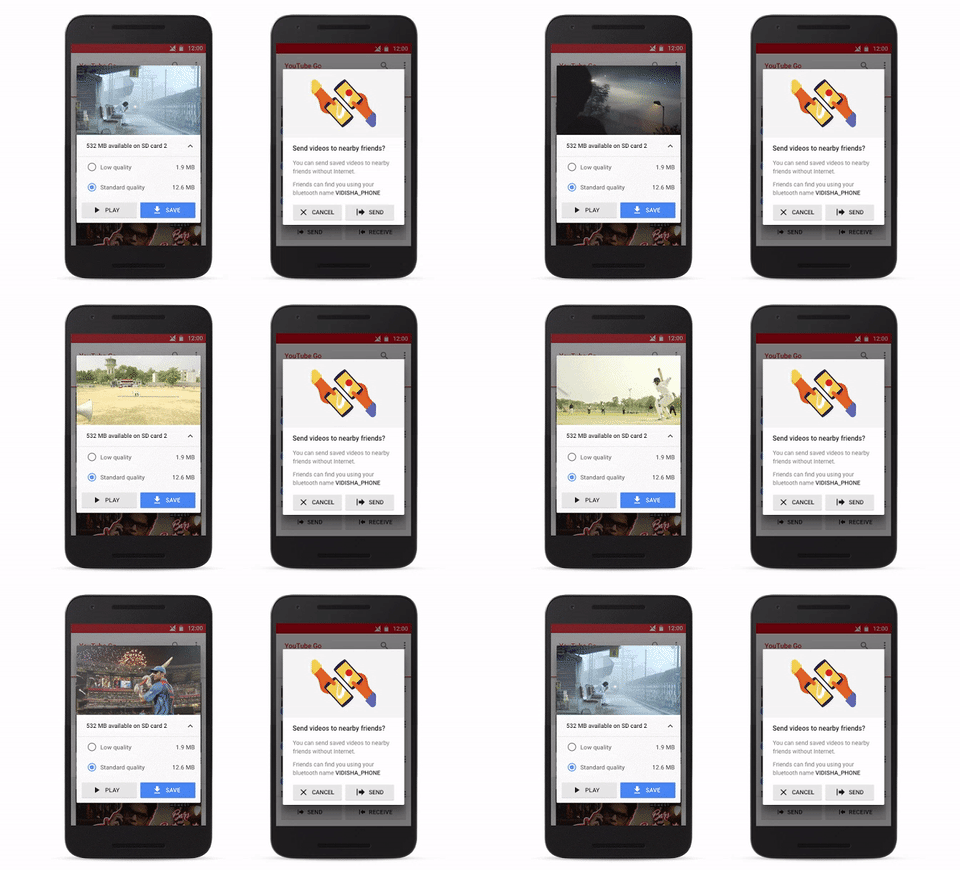
YouTube Go, a data efficient YouTube app, has been announced at the Google for India keynote. The app includes smart offline feature and it designed to use a lesser amount of data while streaming videos. This will help the users connected to a slow internet.

India has been the wellspring of various Google ideas like Offline Google Maps, YouTube Smart offline features, etc. These features were designed to help the internet deprived Indian population which also serves as a large potential market for the search giant. Eventually, the unique features become popular across other countries.


At the second Google for India event in Delhi, Google announced YouTube Go. The company continued Google’s legacy of creating data efficient products and announced YouTube Go.


YouTube Go is created to cater the needs of the users trying to use YouTube on a slow and very slow internet connections existing in the country.


The new YouTube app designed using the already existing Smart Offline feature which allows a user to download a YouTube video for offline viewing. In fact, it has taken a few steps further.

YouTube Go offers more transparency in terms of how much data is used to download a specific video. Before downloading a video, the app shows how many MBs it would require. Google’s data compression algorithms work to reduce the size of the offline video file. The app also benefits the people in your vicinity allowing you to share your offline youtube videos. So, in other sense, you can watch videos without using the internet.

Source: YouTube Go


How to Identify the New Galaxy Note7


Samsung has begun replacing the Galaxy Note7 with a battery manufacturing standard. To help users easily understand if they have a new device and use their new Galaxy Note7 with confidence, the company has introduced a Green battery icon that has been included in three specific software changes.


The new green battery icon will be visible on: 1) the Status Bar; 2) the Always On Display screen; and 3) the Power Off prompt screen, which can be accessed by long-pressing the power key.


Additionally, users can easily check if they are using the new Galaxy Note7 by looking for a square symbol on the label of the packaging box as below.


Our highest priority is the safety of our customers, and we strongly urge Galaxy Note7 users to immediately participate in the replacement program based on local availability.


*Battery icons’ color of the new Galaxy Note7 will be changed to green after Software update.


**All functionality, features, specifications and other product information provided in this document including, but not limited to, the benefits, design, pricing, components, performance, availability, and capabilities of the product are subject to change without notice or obligation.


How to Unlock your Samsung Screen Lock with Dr.Fone: Android Screen Lock Removal


How to Unlock your Samsung Screen Lock with Dr.Fone – Android Lock Screen Removal
Screen locks have become a relatively important thing for most of the Android smartphones, as the screen lock not only provides privacy to customers but also prevent others from checking their private data on their device when they are not around. Screen locks prevent the smartphone from opening applications on its own or dialing itself to some random number because of the super sensitive touch screens we get on smartphones today. It also keeps the smartphone safe when it is between the sheets or in your pocket.

In spite of the above advantages, screen locks have their drawbacks too. The biggest disadvantage of putting a screen lock on your smartphone is to unlock it. Whether it is a pattern or a numeric code or anything else, being unable to memorize the combination can be real bad because as long as the lock screen of the smartphone does not open, you will be unable to do anything with your precious device.

When such situation arises, the common method used to unlock Android smartphones would be root the device, which is also suggested by Android phone service providers.
Rooting the device might be the right and preferred method, as you could lose all the data on your smartphone, especially the one that you did not back up, as well as affect the guarantee or warranty of your smartphone. The best way is to take help from some reliable application that can effectively deal with the issue without damaging anything.

Dr.Fone by Wondershare
Wondershare Dr. Fone is a superb software application that will efficiently and effectively unlock samsung screen lock without compromising with the device and the information stored in it. Wondershare Dr.Fone works with all four kinds of screen locks, i.e. patterns, fingerprint, passcode and PIN. Whether you have forgotten your Android lock screen’s password or bought a second-hand Android device with an already locked screen, with Dr. Fone you can easily and quickly remove Android lock screen. It can remove all four kinds of screen lock, i.e. password, patterns, fingerprint, and PIN within few minutes.

Even though the Dr. Fone software is quite old and popular, the ‘Android Lock Screen Removal’ feature in it is a new one. It can be used on your Android device, Windows computer, and Mac computer (Coming Soon). It is so simple and easy to operate that no extra technological wisdom is required to handle it. It is completely secure and 100% effective.
Currently, it works for Samsung Galaxy S, Note, and Tab series. It is also fully compatible with Windows 10.
How to use Dr. Fone for Android software
The procedure to handle the software and retrieve back your device is pretty simple. The step by step guide below will help you to use Dr.Fone, so that you can successfully remove the Android lock screen within 5 minutes.
Step 1: Choose ‘Android Lock Screen Removal’
To get started with Dr. Fone, launch Wondershare’s Dr.Fone for Android software. Once done, go to the ‘More Tools’ section in the software. From here, choose the option of ‘Android Lock Screen Removal’ from the three options provided under ‘More Tools.’ This will allow you to remove passcode, PIN, fingerprint and pattern from your Samsung phone.

As said above, Wondershare Dr.Fone can remove all types of Android smartphone screen locks, including password, PIN, pattern, and fingerprint. Then, connect the Android mobile device and click on the ‘Start’ button to begin.
Step 2: Enter the download mode on your Android device
In order to get to the download mode in your Android device, follow the instructions below, which are also provided in the program.
1. Turn off your Android smartphone.
2. Hold the power button, the home button, and the volume down button simultaneously.
3. Press the button of the “Volume Up.”

Step 3: Download the recovery package
After you have entered into the download mode on your Android device, your smartphone will start downloading the recovery package subsequently. Wait until the download completes.

Step 4: Remove Android lock screen without losing your data
Once the download is complete, the Android lock screen removal process will start. While the Dr. Fone software works, none of your data on your Android smartphone will be affected. After the whole process is over, you can access your Android mobile device without entering any passcode/pin/pattern and access all your smartphone data without any problem.


Congratulations, if you have followed these procedures, you have successfully unlocked your Samsung Galaxy Android smartphone effectively without having to go through any of the phone lock mechanisms. As you can see, Wondershare Dr. Fone is an awesome piece of software which helps you get your Samsung smartphones up and running with passcodes/pin. s

Leawo iOS Data Recovery Powerfully Brings Deleted Files Back from iPhone/iPad/iPod


How to bring your deleted files back from iPhone/iPad/iPod with Leawo iOS Data Recovery tool

I know that many iPhone users have updated their iPhone/iPad/iPod to iOS 10 for a better enjoyment. However, what if you accidentally deleted your text messages, contacts, notes or other important data from your iPhone or iPad during the process of updating? It’s a quite frustrating thing for you to lose the files after updating to iOS 10. Even though you can restore the previous backup from iTunes/iCloud backup, you can’t selectively recover the deleted files from iTunes/iCloud backup. But now, Leawo iOS Data Recovery, a $59.95 program (free feature-limited demo), is proved capable of recovering data from iOS devices, iTunes backup or iCloud backup.

Leawo iOS Data Recovery is desktop software (with separate versions for Windows and Mac) that works with all iOS devices, including iPhone 7. It’s designed to recover and backup deleted data, including text messages, contacts, notes, and more. Additionally, it can quickly scan and extract 14 kinds of files, like photos, videos, contacts, WhatsApp files, calendars, etc. from iTunes and iCloud backups or obtain and backup the 14 kinds of files by directly scanning your iOS devices.


The iOS data recovery tool can recover data in one of the three ways: direct scan, iTunes backup, and iCloud backup. You can choose anyone of three recovery modes that fits your need, since the application provides a short explanation for each mode. The first method can be used as recovering your recently deleted or lost files that haven’t been backed up to iTunes/iCloud. The latter two methods require you to have previously synced your device with your iTunes/iCloud account. And you can restore the most recent backup from iTunes/iCloud backup. For example, you can use it to recover deleted photos from iPhone with the three recovery modes mentioned above.


The above recovery methods can be used for iPhone 7/7Plus/6s/6s Plus/6/6 Plus/SE/5s/5C/5, iPhone 4s, iPhone 4, iPhone 3GS, iPad 1, iPod Touch 4, iPad mini 1/2, iPad Air 1/2, iPad with Retina Display, the new iPad, iPad 2, iPod Touch 5 and iPad 1.

Apart from iOS upgrade, the software can recover data from iPhone/iPad/iPod touch easily no matter the data have been lost/damaged/deleted owing to jailbreak, factory settings restoring, wrong deletion, broken or formatted storage device, or many other unexpected causes.

Leawo iOS Data Recovery also features a preview function, allowing you to preview the deleted files before recovering them so that you can know exactly what you want to recover. This cuts down on unnecessary storage and allows you to verify each item to ensure its value. This feature is particularly useful if you want to recover some large files lost due to accidental deletion.


The company offers a fully functional free trial of this iPhone recovery tool with limited function. The trial version can only scan iOS devices, iTunes and iCloud backup to preview the lost data. Therefore, if you want to try all functions, you need to purchase it at $59.95 to get register code. In addition to the free trial version, the manufacturer also offers a 30-day money back guarantee (with some restrictions) to all who purchase the software. Also if you are Mac users, you can choose Leawo iOS Data Recovery for Mac.

Leawo iOS Data Recovery isn’t perfect, as it can’t recover all of your deleted files, but it allows you to preview and selectively recover the files you need. It indeed isn’t cheap, but if you accidentally delete important contacts or other files, you will know that some things are priceless.

Microsoft unveils a new Nokia feature phone that costs just $37


Microsoft Uncovers New Nokia 216 Mobile Phone, possibly the last Microsoft-made Nokia phone

Microsoft has just unveiled a new brand handset, the Nokia 216. The Nokia 216 is an entry level feature phone targeting the low-end segment, which will be available at the price of $37. This new feature phone is made keeping developing markets in mind.

This surprise announcement from Microsoft comes after the software giant in May had agreed to sell its entry-level feature phone assets to FIH Mobile Ltd, which is a subsidiary of Foxconn technology group and HMD Global, Oy for $350 million.

The Nokia 216 is dual SIM mobile phone that comes with a 2.4 inch QVGA display along with a 320 x 240-pixel resolution and offers 16MB of RAM. It also comes with 16MB of in-built storage and supports microSD card for additional storage up to 32GB. The device runs Nokia’s Series 30 software. Other specs include 0.3MP cameras on both the front and the side. The LED flash of the rear camera doubles as a built-in torchlight.


The device also has a removable 1020mAh battery, which Microsoft claims would offer up to 18 hours of talk time, with standby up to 19 days. You also get the Opera Mini Browser and the Opera Mobile Store, which offers to access Facebook along with other apps and mobile games. It also includes FM radio, MP3, video player and Bluetooth audio support for headset. It can store as many as 2000 contacts.

The Nokia 216 comes in black, grey or light blue. Microsoft plans to start selling the device in India starting October 24. The Nokia 216 is unlikely to make it’s way to the U.S., as the company is expected to announce some new high-end Windows hardware later this year.


How To Speed Up Your Android Phone By Disabling Animations


Very often Android smartphone owner search for options to speed up their devices. Sometimes, the Android animations degrade your phone’s performance. By enabling the Developer options and changing a couple of simple settings, you can disable animations and speed up your Android phone in few steps.


Android operating system allows the OEMs to change the look and feel of the software by incorporating different themes, icons, and animations. Apart from improving the aesthetics, these elements also improve the overall user experience.

With each new version of Android, Google rolls out new types of animations. However, if you don’t own a powerful hardware, these animations can become a curse. They can irritate you due to their slow speed at which they play when you click on some icon. So, for some users, these animations act as performance killers rather than improving the overall experience.

I’m pretty sure that such frustrating situations have been faced by many of you. However, Android doesn’t provide you a direct option to turn these animations off. To speed up your Android phone by disabling animations, you need to enable the Developer options and find relevant settings. By making these changes, you should notice an immediate performance improvement on your Android device.
How to disable animations on your Android smartphone?

I’ll be explaining how to disable animations in simple steps. Please read ahead:
Enabling Developer options:
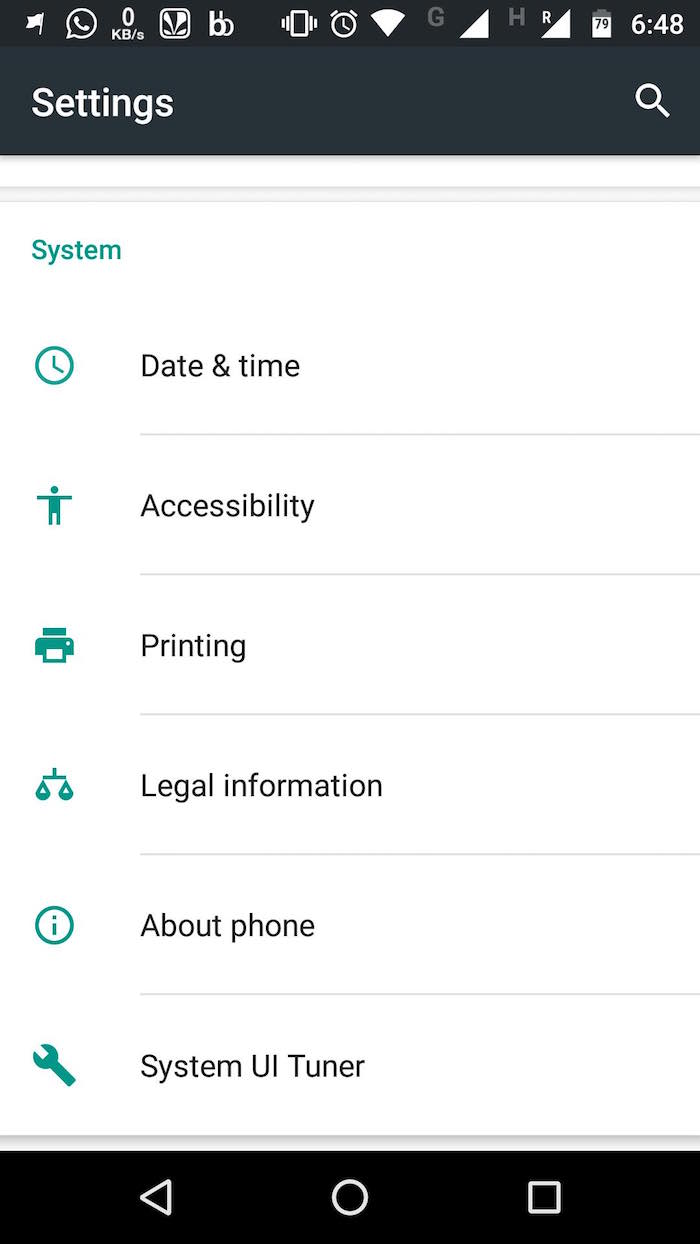
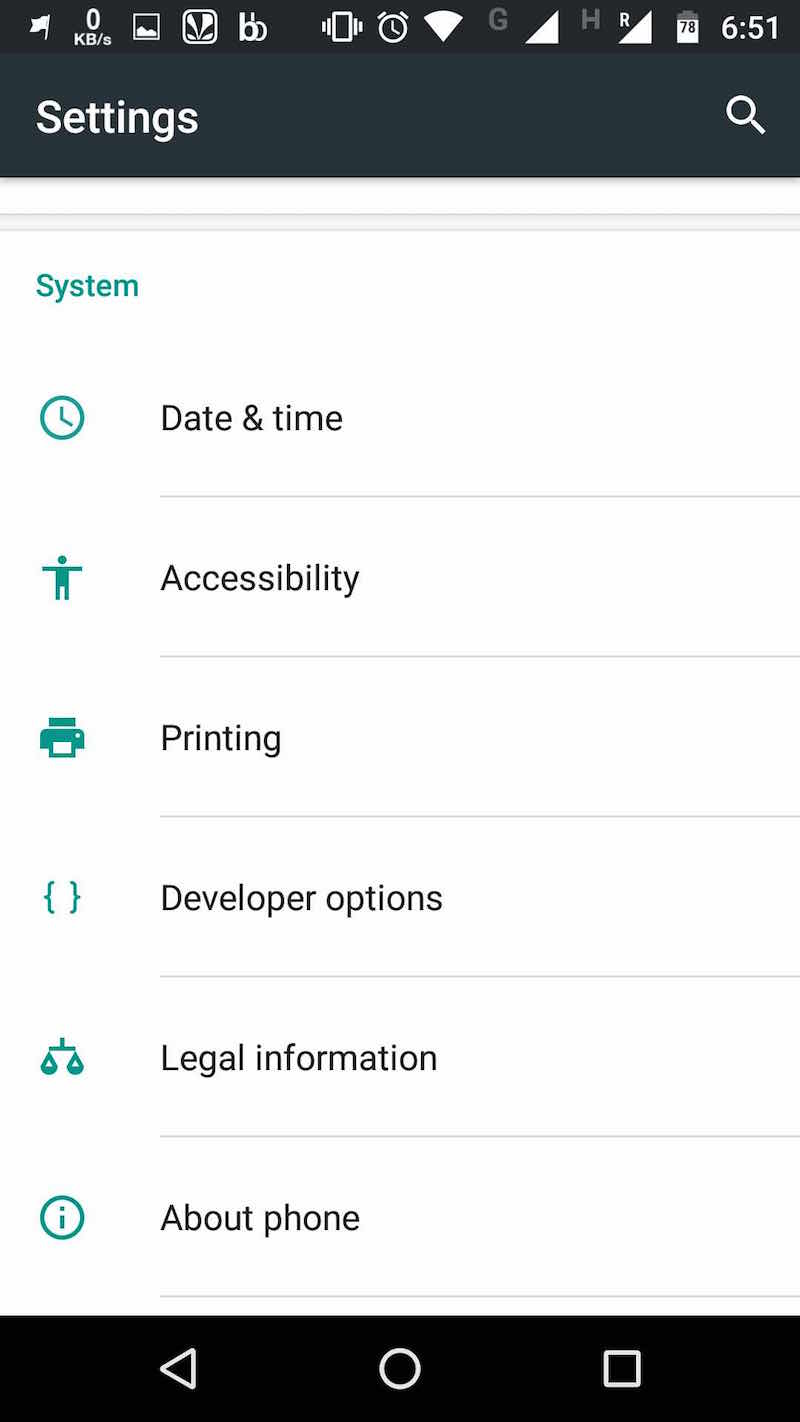
To make these changes, first you’ll need to enable the developer mode on your Android smartphone. It’s hidden by default and you need to make some changes to enable it. To do this, open the Settings screen and scroll down to the bottom. There, tap on the About phone option.
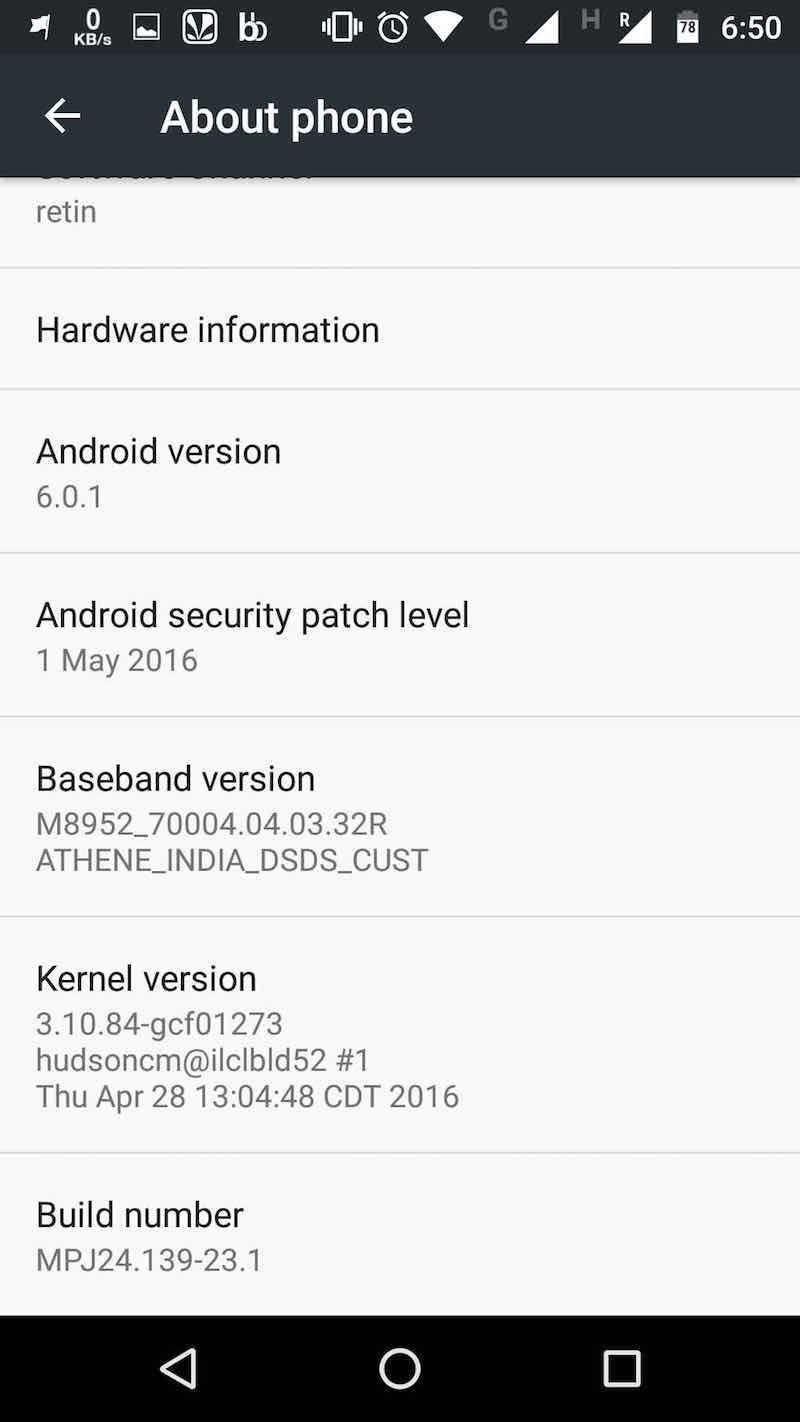
In this window, again scroll down to the bottom and look for Build number. Tap this field repeatedly.
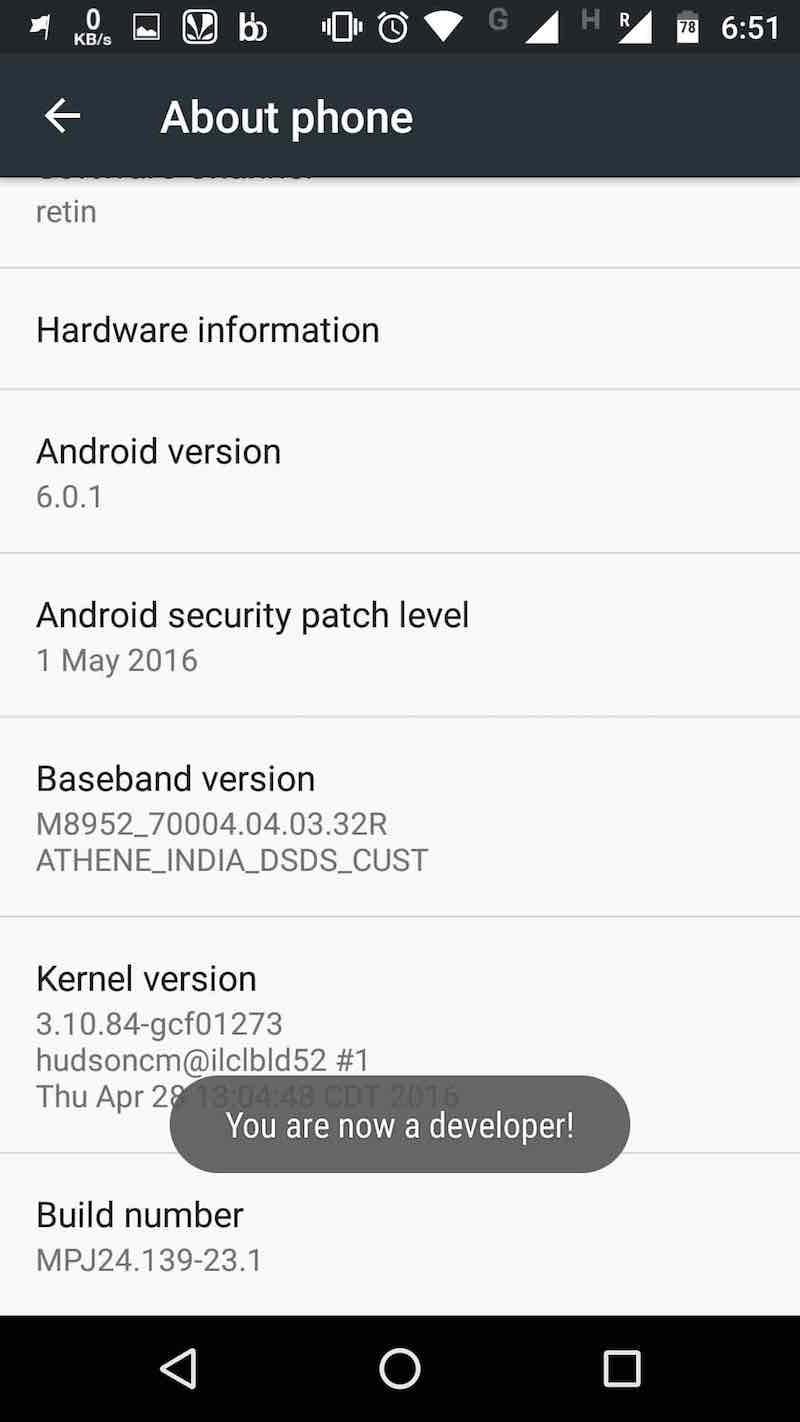
After tapping few times, you’ll be seeing a message — “You are now a developer“.
Now, you need to go back to the Settings screen and scroll to the bottom. There, you’ll be able to spot the new Developer options field. Now tap on it and proceed with the process to disable the animations in your Android smartphone.
Disabling the animations:
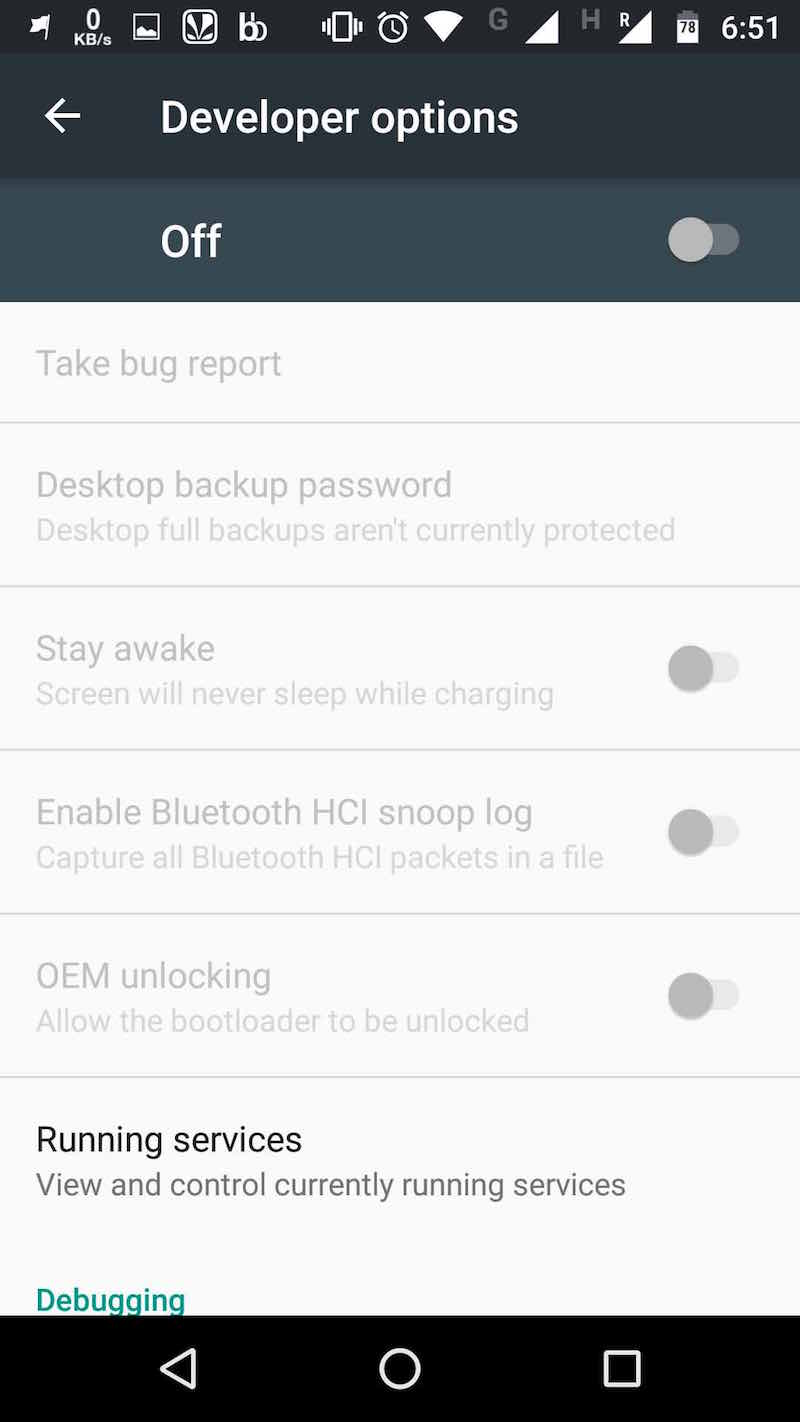
After opening the Developer options screen, you need to turn On the option by sliding the switch at the top. This will enable the hidden options and allow you to make changes.
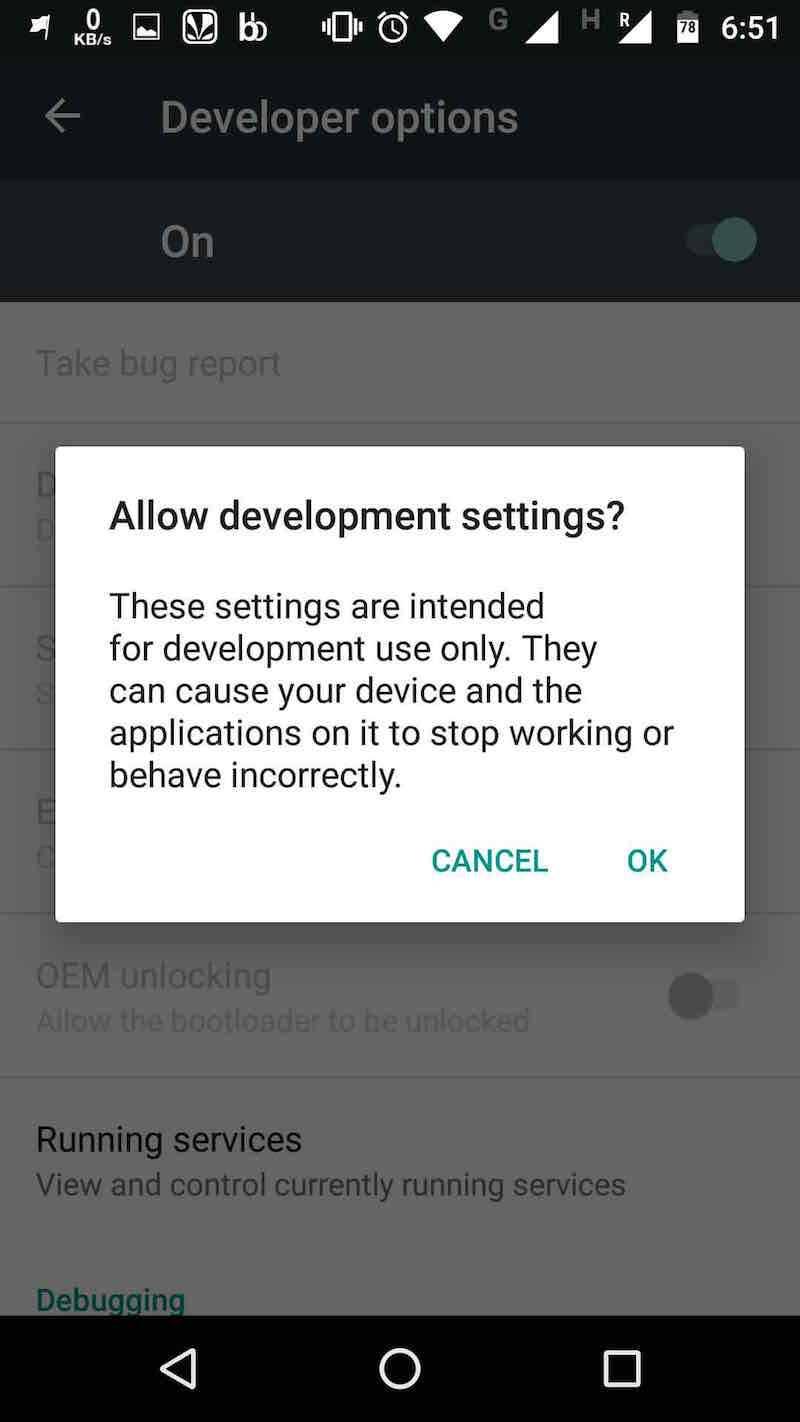
You’ll see a small dialog asking you to allow development settings. Tap onOK and proceed to disable animations on your Android smartphone.
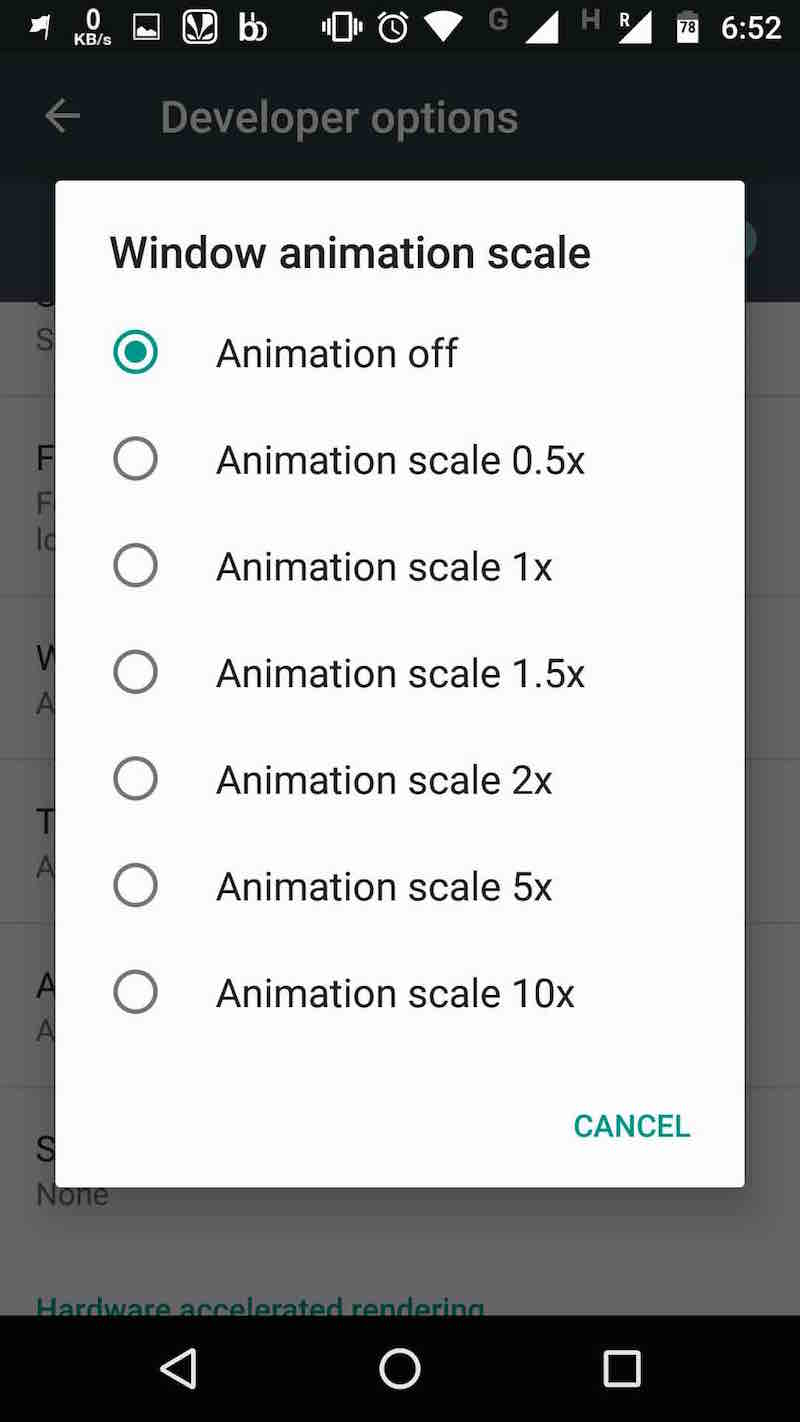
You need to scroll and down in this screen and look for different options with animation keywords. You’ll be spotting different options like Window animation scale, Transition animation scale, and Animator duration scale.
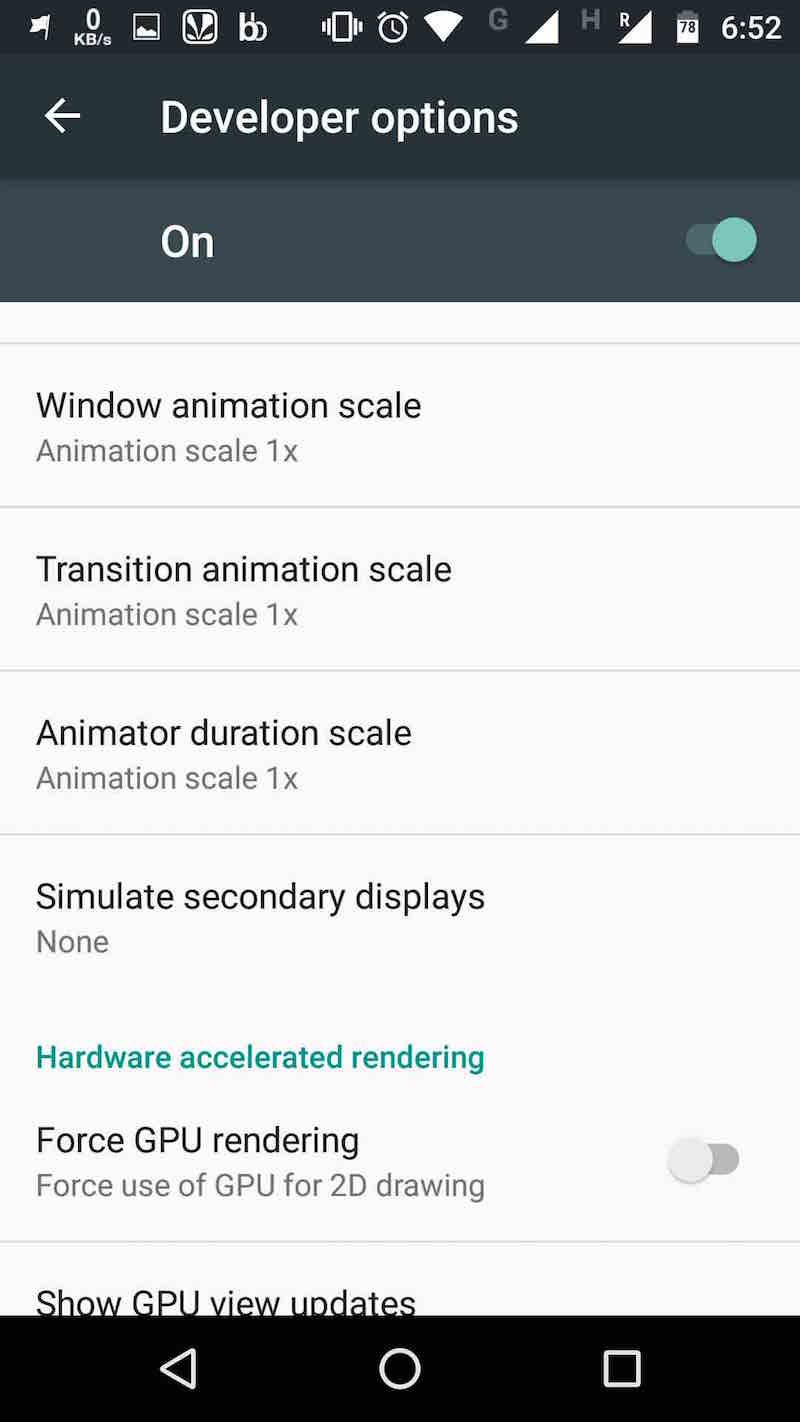
Now tap on each of these options and select the Animation off option. Please note that the default value is set as 1x. So, if you want to speed up your phone without entirely disabling the animations, you can select the Animation scale 0.5x option. This will boost the speed of animations and your phone’s speed.
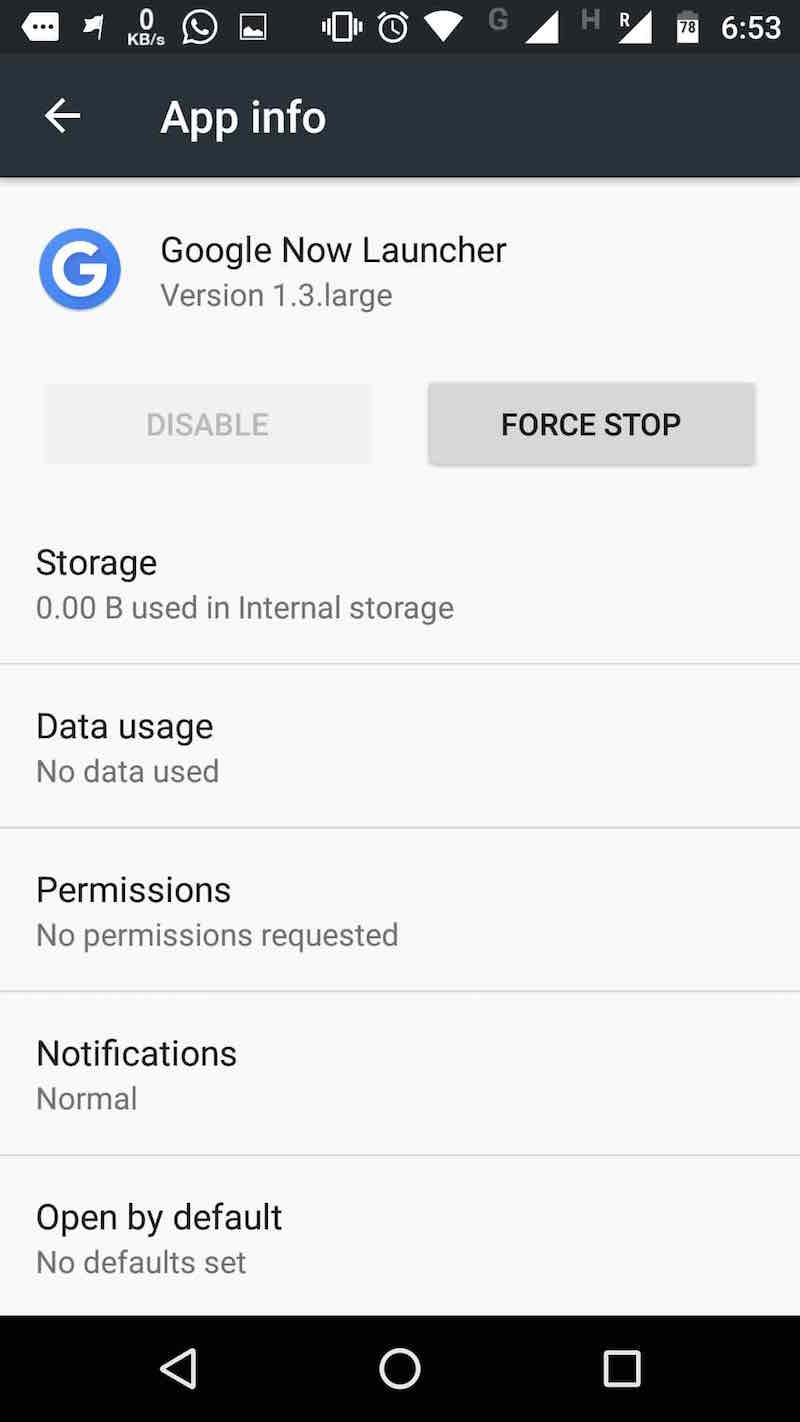
These changes won’t take effect immediately. For that, you’ll need to restart your Android launcher after making the animations changes. To do so, open the Android launcher app from the Apps option in Settings, and select the Force Stop option. Now tap your Android smartphone’s home button and
it’ll relaunch your Android launcher.
After applying these simple steps, the animation effects in your smartphone will be disabled and you’ll notice a speed improvement. So, from now on, if you’ll tap on some app or make a transition to another screen, the change will take place as soon as possible. Now, you phone won’t play animations and use processing juice to render them.

Important: Please note that the extent of speed improvement also depends on your Android phone and its hardware capabilities. If completely turning off animations causes some problems in certain apps, decrease the delay to 0.5x.

Did you find this article helpful? Don’t forget to drop your feedback in the comments section below.

Facebook Messenger May Have Public Chat Room Features Soon


Facebook Messenger’s source code discloses hidden Rooms feature


According to speculations, Facebook Messenger app may be very soon launching a feature called Rooms. A developer discovered references to the Rooms project within Facebook’s existing source code, which would allow friends and strangers to chat via public Facebook Messenger groups, reports TechCrunch.

TechCrunch has found mentions of public chats within Messenger’s code, which includes a logo and a description of the service. The hidden code reads, “Rooms are for public conversations about topics and interests. Each room has a link that can be shared so anyone on Messenger can join the conversation.”
TechCrunch also reported that some of its readers were able to launch a chat room with both friends and strangers, with an admin screen showing some features currently unavailable on regular group messages.
Initially, when contacted by TechCrunch, the social networking giant refused to comment on the Rooms feature. However, after being sent screenshots of the code showing how users are able to join Rooms and chat using the features and interface of Messenger, Facebook said, “We often run small tests — nothing else to share beyond that.”
The idea of chatrooms is nothing overly innovative. This is something that Facebook has attempted back in 2014, which was shutdown in 2015 as it was unable to garner much traction. The Rooms app allowed users to talk to others who share the same interests as them but in complete anonymity.
We will have to wait and see if Facebook releases the Rooms feature for Messenger in the near future. Are you excited about this new feature? Do let us know in the comments mentioned below.
Source: TechCrunch

Remix OS Player Makes It Simple To Run Android Games In Windows


The popular Android-based Remix OS for PC is now available as an emulator application for Microsoft Windows OS. Known as Remix OS Player, the free application can be used to download and run Android apps and games on your computer without installing a separate OS.

You might be familiar with the Remix OS, an Android-based operating system for ARM and x86 platform. It lets you run Android apps and games on your computer. In fact, you have the complete Android with the advantage of a mouse, keyboard, a bigger screen, and powerful processing.

Jide Technology, the maker of the Remix OS for PC, has transformed the popular light-weight OS to an emulator. Now, the Remix OS Player can be installed like a software on an existing operating system. This gives you the advantage of having Android with other powerful operating system like Windows and saves you the effort of dual-booting your machine.

Remix OS Player is not something that has been done for the first time. We already have names like BlueStacks. But the thing which sets it apart is that it’s based on the Android Marshmallow. Many other Android emulators are based on older Android versions like Lollipop and even Kitkat.

Using Android on your computer also has other perks. You have the freedom of using multiple apps at a single time using the windows in Remix OS Player. So, you can multitask and play more than one game at a single time. Also, just like the Remix OS for PC, the Remix OS Player is free of cost.

System Requirments for Remix OS Player
Processor: Intel Core i5/i7 (Minimum: Intel Core i3)
RAM: 4GB or higher
Operating System: Windows 7 and later.
Storage: 16GB (Minimum: 8GB)

Currently, the Remix OS Player is not compatible with AMD processors and you also need to enable hardware virtualization in your BIOS settings.

You can visit Jide’s website for the download links. Try the Remix OS Player on your machine and let us know about your experience in the comments below.

How to Upgrade to iOS 10 Right Now


iOS 10 is arriving next Tuesday, but if you have the patience of a teenager, don’t worry, it’s possible to upgrade to iOS 10 right now.
EDIT: iOS 10 is out officially, download it from your updates or iTunes.

If You’re In the Beta Program, Update Now

iOS 10 has been available in the beta program for a while and Apple sent out the final version of iOS 10 to beta testers this morning. If you’re in the beta program, head over to Settings > General > Software Update and you’ll get upgraded to the final version of iOS 10. This is the easiest way to update your phone now as long as you’re already enrolled in the program. If you’re not, head over to Apple’s sign up page and see if you can still enroll.
If you don’t want to mess around with the beta program because it’s a bit of a pain to leave, you can still download the final version of iOS 10 right now. You’ll just need to jump through a couple hoops.

Step One: Back Up Your Device

Before you upgrade, make sure you back up your device with iTunes or on iCloud (or both, if you’re extra worried). Unlike previous early-upgrades, you won’t have to restore your phone this time around, but it’s still a good idea to have current backups in case something goes wrong.
As always, things can change before the final public release, so if you’re not comfortable potentially screwing something up, just wait until Tuesday.

Step Two: Download Xcode 8

With recent changes to how the developer accounts work, it’s now possible to download and install the “gold master” versions (which should be the exact same as the final, public release) directly from Apple. This is great news! The catch is that you have to be on a Mac and you have to install Xcode 8 first.
If you do not install Xcode 8 first, you will get an error message and your phone will be wiped, so do not skip this step.
  1. Go to the Xcode 8 page and click the download link. Xcode is only available on Mac.
  2. Sign in with your Apple account. You may need to register for the freedeveloper program (not the paid one) after you sign in if you haven’t already.
  3. Click the Download Xcode 8 link and wait for Xcode to download.
  4. Double-click the XIP file to install Xcode 8, this might take a while.
  5. Follow the on-screen instructions to complete the installation, which will update your version of iTunes.
Once that’s all out of the way, it’s time to actually update your iOS device.

Step Three: Download iOS 10

Apple’s released iOS 10.0.1 to developers, which is currently listed as the “gold master” version of iOS 10. Find your device on the list below and click the link to download an iOS 10 IPSW file for your device. If any of the below links don’t work for some reason, you can find a list at the iPhone Wiki.

iPhone

iPad

iPod Touch

Step Four: Install iOS 10 Using iTunes

With the proper IPSW file for iOS 10 downloaded and Xcode 8 installed, you can now install it on your iOS device.
  1. Plug your iOS device into your Mac.
  2. Open iTunes and select your device.
  3. Hold down the Option key on your keyboard and click the “Update” button on the Summary page. If you’d prefer to start over from scratch and restore your iOS device, hold down the Option key and click “Restore.”
  4. Select the IPSW file you downloaded above and click Open.
That’s it, from there, iTunes will update your device to iOS 10 and assuming no bugs are found between now and the final release on Tuesday, you should be good to go.

Apple has replaced the iPhone 7 headphone jack with a barometric vent in its place


Apple confirms that the left bottom speaker grill on the iPhone 7 is a barometric vent


The removal of 3.5mm headphone jack from the newly launched iPhones – the iPhone 7 and iPhone 7 Plus has annoyed a lot to Apple fan users and they have taken a lot of flak for it. The need to remove the headphone jack from the new iPhones was explained by the Apple CEO Tim Cook as “that jack takes up a lot of space in the phone, a lot of space. And there’s a lot of more important things we can provide for the consumer than that jack.” His colleague Phil Schiller cited “courage” for the same.


However, gadget repair community iFixit discovered that Apple isn’t really using that “extra space” it got after getting rid of the headphone jack. In their teardown of iPhone 7, they found how Apple uses a lot of adhesive, which is supposed to assist in waterproofing, in addition to a larger 2900 mAh battery. In addition, they discovered a piece of plastic that sits behind the ingress protection (waterproofing), right where the headphone jack would have been.


Apple told The Verge that the space formerly occupied by the 3.5mm headphone jack helps the handset’s barometer function correctly:


“According to Apple it’s a “barometric vent. Apparently adding all the waterproofing to the iPhone 7 and 7 Plus meant that it was more of a sealed box, and so to be able to have an accurate and working barometer, Apple used that space. The barometer is the thing that allows a phone to measure altitude, and Apple points out that on the iPhone 7 it can measure even minor changes like climbing a flight of stairs”.


The iFixit team described it as “a component that seems to channel sound from outside the phone into the microphone… or from the Taptic Engine out.” While the Taptic Engine was part of the reason for Apple to remove the headphone jack as it was taking up the majority of the space where the connectivity was housed, the ability to make the iPhone water resistant was likely equally important.


You can read more about iFixit’s teardown here.

It’s Confirmed: “Intel Inside” The New Apple iPhone 7


In a teardown operation by Chipworks it has been confirmed that some iPhone 7 models are running Intel mobile platform wireless chips inside. The model in the teardown was iPhone 7 A1778. This has also solidified the earlier reports about Apple shifting to multiple vendors for wireless modems.

Apple recently released the iPhone 7 which marked the end of the analog 3.5mm jack from the Apple iPhone line. Just like the older iPhone models, the iPhone 7 features an A series chip known as A10 Fusion. Unlike other smartphone manufacturers, Apple itself designs the chips for its iPhones. But the whole chip is not made with Apple-made components.


Until now, the iPhone-maker has been dependent on chip makers like Qualcomm for the wireless chips which enable iPhone to connect to a carrier network. Chipworks, in its iPhone 7 A1778 teardown, has found an Intel Mobile Platform chips.

“Intel supplied not just one, but two RF transceivers, the baseband modem, and the (RF) power management IC,” reads a blog post. Chipworks is a Canada-based patent analysis company which reverse engineers devices for companies who want to monitor their patents.

The teardown confirmation has also solidified earlier rumors of Apple going for multiple modem vendors. In June 2016, Bloomberg, referring to unnamed sources, reported that Apple would be putting Intel wireless modem chips for the new AT&T exclusive iPhones and some other variants in overseas markets. The report also said that Apple would use Qualcomm chips for the Verizon exclusive iPhones and the iPhone models sold in China.

Read Chipworks’ full Apple iPhone 7 teardown here.

5 Best Android Apps Not Available on Playstore 2016


Top 5 best android apps which you never find on google playstore. so here iTech hacks presents a list of all those top and best apps which helps you alot in your android device.in this article i try my best to cover all those android apps which i found best and top on peoples choice rating. so lets see the 5 Best Android Apps Not Available on Playstore 2016

5 Best Android Apps Not Available on Playstore 2016


Inside Tech Hacks – inside this tutorial here i try my best to cover top andbest android apps that you never know or never try to find.here i am going to teach this in two methods one for Rooted Android phones or Another one is for Non Rooted android phone.


#1. MiXplorer


A free non ad-supported file browser with great functionality built right into it – that’s the easiest way to describe MiXplorer. The app looks like it’s running Material Design, but is compatible with Android devices running OS v2.0 and also Kitkat v4.4+.


Download MiXplorer


Not only does it have a theme engine to customize the looks of the app, but it also has cloud integration with more than a dozen services.


#2. Popcorn Time


Popcorn Time lets you do just that with the convenience of a simple yet elegant app. Once installed, it gives you easy access to the most popular Movies and TV shows by a simple swipe from the right. There is also a third category for Anime as well, if you’re into those.


Download Popcorn Time


Note: Needless to say, the movies you watch using the above app may or may not be legal. At iTech Hacks we neither condemn nor condone piracy. So do check the laws of your land before you decide to use any torrent-based app, including the one we mention above.


#3. QuickLyric


Ever wanted an app that gives you the lyrics of all the songs in your library? Well, this is the perfect app for you, and even though there are some alternatives available on the Play Store, they don’t all scan your music library and download the lyrics for offline use.


Download QuickLyric


#1. Adaway


Tired of all the ads that keep popping up in those ad-supported apps? Well, there is an easy fix to this problem. Simply install Adaway! Naturally, Google has never been fond of such apps and you will never find these in the Play Store. But how hard is sideloading an Android app anyway? Once installed, it simply checks for updated files and merges them with the current list.


Download Adaway


Once installed, there’s nothing else that needs to be done. The app does all the hard work automagically, while you can enjoy all your (ad-supported) apps without interruptions and annoying pop-ups.


Note: its more helpful if you know how to make your Android phone completely ad-free.


#2. Lucky Patcher


Want to modify permissions given to apps. want to hack any android game with lucky patcher with the help of lucky patcher. Want to bypass premium license verification andstill do more? Check, check, and check! This is the ultimate all-in-one amazing app that you’ve been waiting for.


Download Lucky Patcher


Lucky Patcher also gives you unlimited access to reading apps like NYT and The Wall Street Journal, but since everything is done via a ‘patch’, it will find no place in the Play Store

Apple’s iOS 10 software update bricking iPhones and iPads


Apple’s iOS 10 Download That Was Bricking iPhones Has Been Fixed Now


Last night, Apple released its “biggest iOS release ever” – iOS 10 and macOS Sierra to the public. However, just less than an hour after launch, social media was flooded with complaints from users that their iPhone and iPad devices are getting ‘bricked’ after attempting the over-the-air iOS 10 update.

It was reported that the smartphones or iPads were shutting down to install the software after downloading the iOS 10 update. Instead of the device automatically turning back on with iOS 10 installed, a screen appeared that were prompting users to plug their handsets into a computer, rendering the smartphone useless until they did so.

However, Apple has issued an official statement saying it’s already resolved the issue. The company claims it only affected a “small number of users” in the first hour that iOS 10 was available.


“We experienced a brief issue with the software update process, affecting a small number of users during the first hour of availability. The problem was quickly resolved and we apologize to those customers. Anyone who was affected should connect to iTunes to complete the update or contact AppleCare for help.”

Apple Support has been reminding users to back up their smartphones before attempting to upgrade, and suggesting that they download the software over iTunes.


If you are one of the many unfortunate users with a bricked device, which means that your smartphone or iPad won’t function, all you need to do is plug the device into a Mac or PC, open iTunes, and trigger a restore. Here’s what you need to do.

1. Connect your iPhone or iPad to your Mac or PC.
2. Open iTunes on your Mac or PC.
3. Press and hold your device’s Sleep and Home buttons simultaneously until you see the recovery mode screen.
4. A prompt in iTunes will ask you to update or restore. Select Update.
5. When the install completes, you can use your smartphone.

Note: Repeat steps 2–4 if you run into a problem during setup.

Apple has also recommended using AppleCare directly, or you can head over to an Apple Store if you don’t have access to a Mac or PC.


https://www.engadget.com/2016/09/13/ios-10-update-bricked-my-iphone/

Apple why killed the 3.5mm headphone jack on the iPhone 7


Apple explains in detail why it killed the 3.5mm headphone jack

Apple unveiled its latest smartphones – the iPhone 7 and iPhone 7 Plus – at a grand event in San Francisco on Wednesday (September 7). Both new iPhones go on pre-order in the U.S. on September 9 and will be going on sale in the country on September 16.

For some time now, the world’s biggest tech company had been widely expected to kill off the headphone jack at the launch of the iPhone 7 in San Francisco. So, it was no surprise when the iPhone 7 was revealed without 3.5mm headphone jack, and has been replaced by headsets that plug into the device’s Lightning adapter, which is also used for charging. The Lightning adapter will be provided for free inside of every iPhone 7 box to help smooth over the transition away from the 3.5mm jack.

However, Apple’s decision to remove the headphone jack that has been around and in-use for decades as part of an underlying push towards wireless, is likely be a topic of heated debate for months to come.


Yesterday, Phil Schiller said that Apple was deserting the headphone jack because it was the only company “courageous” enough to make such a drastic and bold decision. In short, Schiller’s hyperbolic joke became a point of laughter across the web.

Further, defending the company’s decision for removing the headphone jack, Apple’s SVP of hardware engineering Dan Riccio told BuzzFeed News, “We’ve got this 50-year-old connector — just a hole filled with air — and it’s just sitting there taking up space, really valuable space.” He adds, “It was holding us back from a number of things we wanted to put into the iPhone. It was fighting for space with camera technologies and processors and battery life. And frankly, when there’s a better, modern solution available, it’s crazy to keep it around.”


Removal of the headphone jack has allowed Apple to increase the size of the 4.7-inch iPhone 7 battery by 14%, finally offering users with an extra two hours of battery life. Further, removing the 3.5mm jack has also helped Apple deliver a more water-resistant iPhone, Riccio explained.

Apple executive, Greg Joswiak said, “The audio connector is more than 100 years old. It had its last big innovation about 50 years ago. You know what that was? They made it smaller. It hasn’t been touched since then. It’s a dinosaur. It’s time to move on,” justifying that there is no convincing reason to keep the 3.5mm headphone jack active.

In the meanwhile, another Apple executive Phil Schiller said that the shift to wireless technology is “inevitable.”

“You’ve got to do it at some point,” Schiller added. “Sooner or later the headphone jack is going away. There are just too many reasons aligned against it sticking around any longer. There’s a little bit of pain in every transition, but we can’t let that stop us from making it. If we did, we’d never make any progress at all.”


Whether or not Apple has made a sensible decision to do away with the 3.5mm jack on the iPhone only time will tell. To check out the full Buzzfeed interview of the trio of Apple executives, click on the linkhere.

Future Samsung Galaxy Phone To Run Windows And Android Simultaneously, Shows New Patent

Samsung patent shows smartphone running Android and Windows at the same time

Samsung has filed a new patent application in South Korea in which a user can switch back and forth between Android and Windows Phone operating systems simultaneously. The patent was filed back in May 2015. Currently, Samsung phones only run on the Android OS with a few exceptions that run on the company’s home-bred Tizen OS.
Basically, switching between the systems is much like  working with, multiple apps in Samsung’s Multi Window feature as implemented in current Galaxy smartphones. The company is using one OS as standard and whenever a user will press the Home button, it will go back to the same default OS.
According to reports, diagrams of the patent filing show how the two OS will co-exist and be used simultaneously. The OS that is not in use will minimise in the form of an icon and the user can tap it to jump into that OS. Further, it also shows how shared folders and resources can be set-up so that both operating systems have access to them, and their performance could be manually limited by tweaking their access to the CPU, RAM and storage. Users can even drag and drop files between the two operating systems. The patent also states that users will be able to view files from both the OS.
Whether this patent would turn into reality only time will tell. In the past too, the South Korean giant had officially introduced the dual-boot tablet Ativ Q in 2013. Even though it was a really interesting concept, the tablet has never made it to shelves.
Samsung patent shows smartphone running Android and Windows at the same time
Samsung has filed a new patent application in South Korea in which a user can switch back and forth between Android and Windows Phone operating systems simultaneously. The patent was filed back in May 2015. Currently, Samsung phones only run on the Android OS with a few exceptions that run on the company’s home-bred Tizen OS.
Basically, switching between the systems is much like  working with, multiple apps in Samsung’s Multi Window feature as implemented in current Galaxy smartphones. The company is using one OS as standard and whenever a user will press the Home button, it will go back to the same default OS.
According to reports, diagrams of the patent filing show how the two OS will co-exist and be used simultaneously. The OS that is not in use will minimise in the form of an icon and the user can tap it to jump into that OS. Further, it also shows how shared folders and resources can be set-up so that both operating systems have access to them, and their performance could be manually limited by tweaking their access to the CPU, RAM and storage. Users can even drag and drop files between the two operating systems. The patent also states that users will be able to view files from both the OS.
Whether this patent would turn into reality only time will tell. In the past too, the South Korean giant had officially introduced the dual-boot tablet Ativ Q in 2013. Even though it was a really interesting concept, the tablet has never made it to shelves.